
Workflows and automations
9 min read
Define workflow rules, trigger automations from CRM and operations events, and reduce manual handoffs.
Features in this guide
-
Workflow definitions
/core/workflowsAutomation rules with triggers, conditions, and actions.
Video walkthrough
Workflows
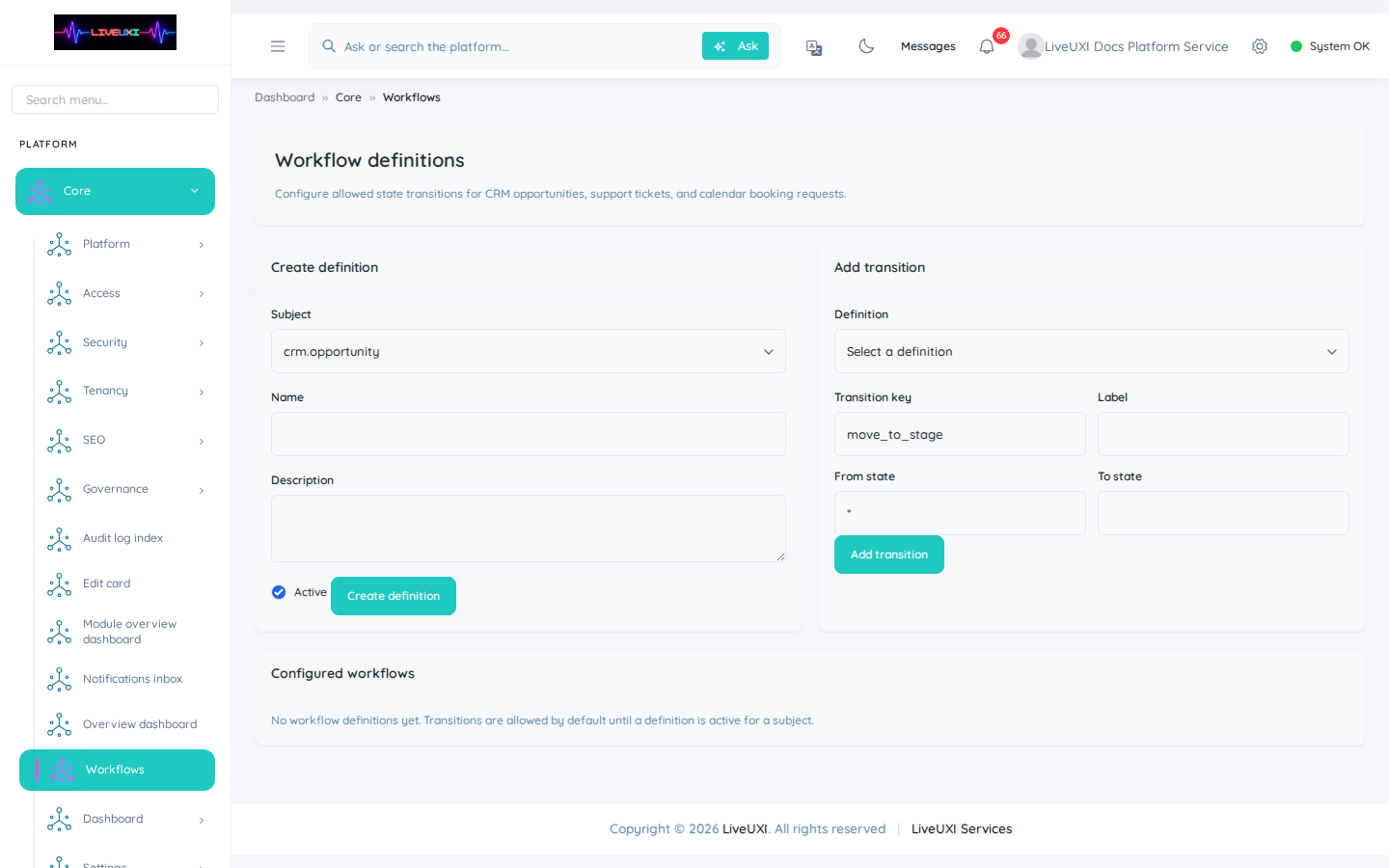
Open Core → Workflows and review automation definitions.
What automations do in LiveUXI
Workflows connect business events to actions — creating tasks, sending notifications, updating records, or routing work to the right team. They sit alongside CRM, project delivery, and communications so repetitive work does not depend on someone remembering to click.
Open the workflow manager
Core → Workflows lists every workflow definition in your tenant. Each definition describes triggers, conditions, and the actions that run when criteria are met.
-
1
Go to Core → Workflows
From the admin sidebar, open Core and select Workflows (or navigate to /core/workflows).
-
2
Review existing definitions
Scan the list for active workflows — note which modules they touch (Sales, Project Manager, Communications).
-
3
Open a definition to inspect triggers
Click a workflow to see when it fires and what actions it performs. Confirm ownership before editing live rules.
-
4
Test with a low-risk event
When adding a new rule, test against a non-production record or staging environment first.
Common automation patterns
Teams typically automate lead assignment, follow-up reminders, invoice chase sequences, and project task creation when deals close. Start with one high-volume manual step rather than automating an entire department at once.
Tips
- •Name workflows clearly — future you should know the trigger without opening the definition.
- •Pair automations with inbox queues so failures surface to a human, not silently.